How to put subtitles on an Instagram Story
There are two ways: Instagram’s own Captions sticker, or subtitles burned into the video before you post it. Here is how each one works, when the sticker isn’t there, and why captions sometimes don’t show up for viewers.
Download on the App StoreWhat burned-in subtitles look like
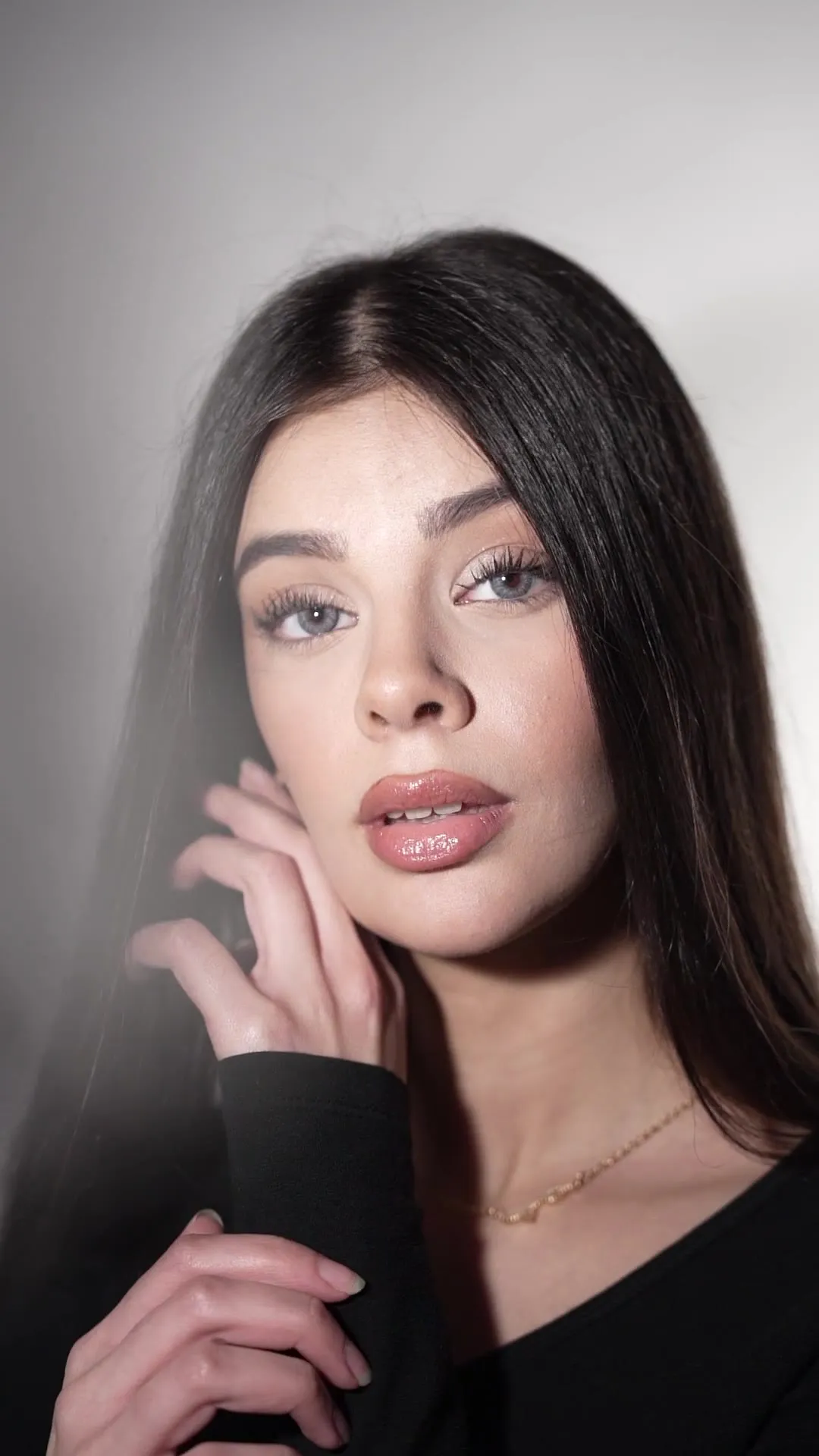
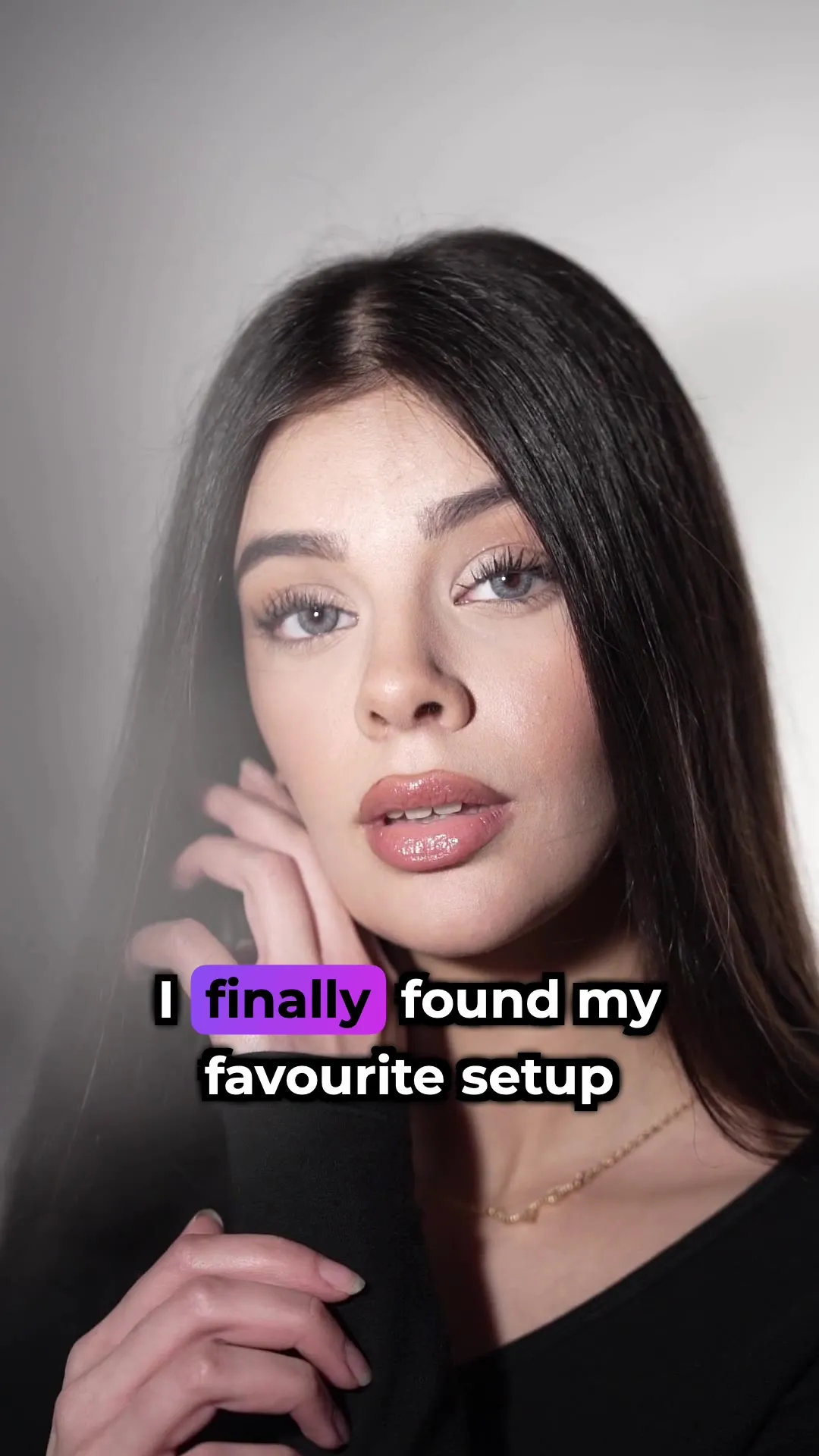
Both frames come from the same clip. The right one is the exported file, rendered by the app — not a mock-up.
Option 1: Instagram’s Captions sticker
-
Open the sticker tray
Pick or record your video for a story, then tap the Stickers icon at the top of the editor.
-
Choose Captions
Instagram transcribes the audio and places the text on the story.
-
Fix and style it
Tap the transcript to change its colour or font. Double-tap it and tap a single word to correct that word.
The sticker is quick, but it has limits. Instagram’s own help page says stickers “may be unavailable in Japan and for countries located in Europe” and that not every sticker is available to everyone. When it launched in May 2021 it worked in English only, and Instagram doesn’t publish a current list of languages it understands.
If the sticker isn’t in your tray, update the app first. If it still isn’t there, it isn’t offered for your account or country.
Sources
Option 2: burn the subtitles into the video
-
Pick the video
Open Subtitled on your iPhone and choose the clip from your camera roll.
-
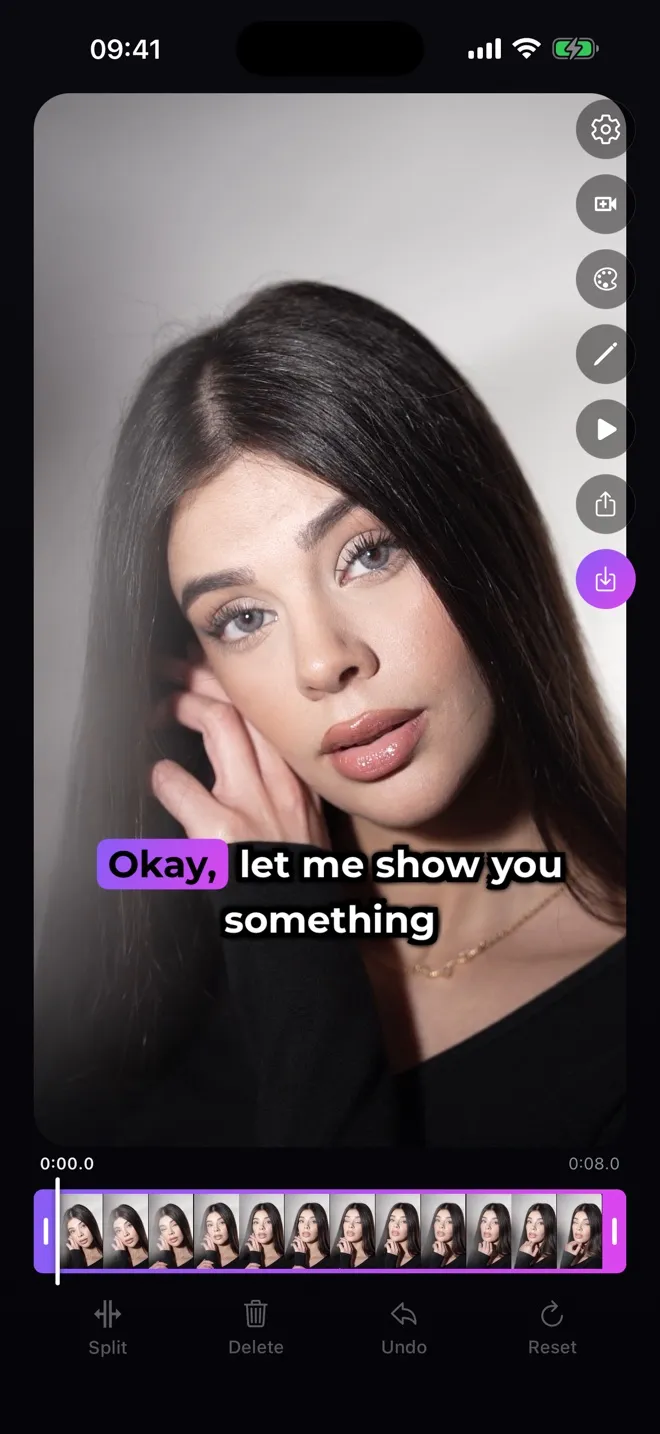
Generate the subtitles
The app transcribes the speech and times every word. Edit any line if a word came out wrong.
-
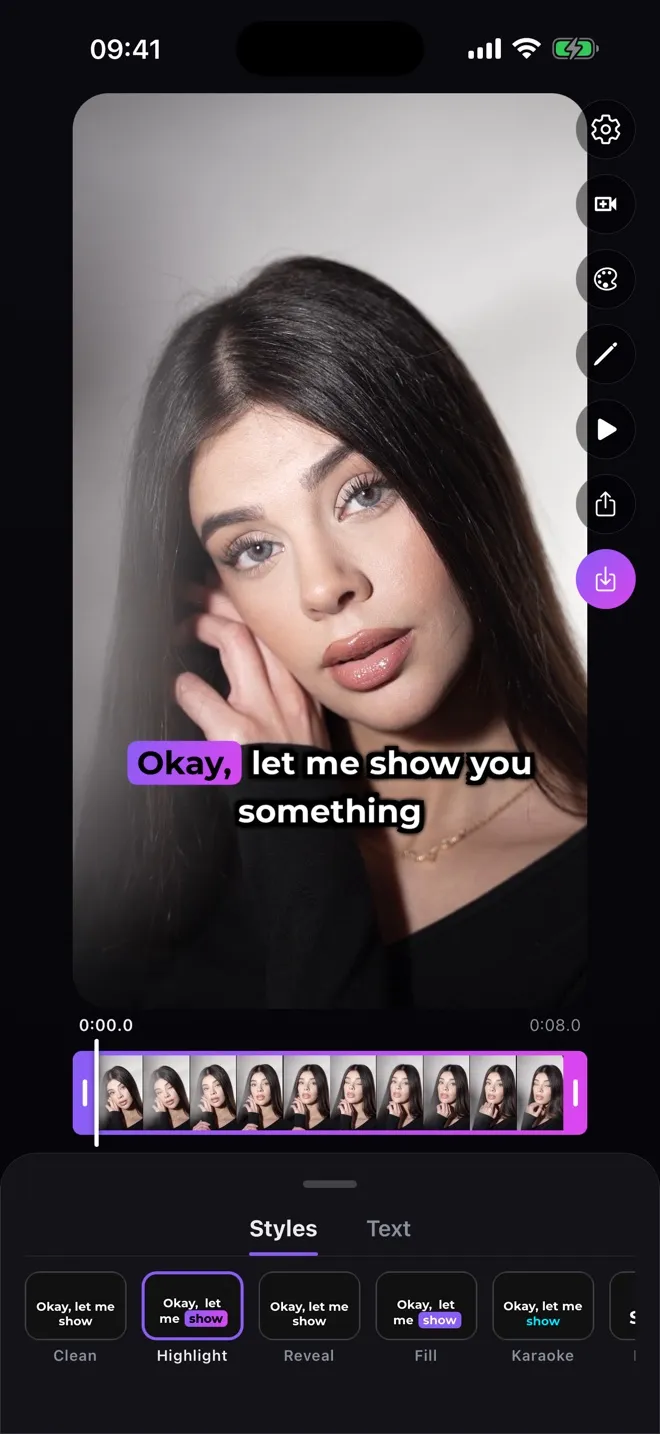
Choose a style
Pick one of the seven styles. Highlight, shown here, puts the word being spoken on a coloured pill.
-
Place the text
Drag the subtitle to where it reads best — usually below the face, so it never hides the speaker.
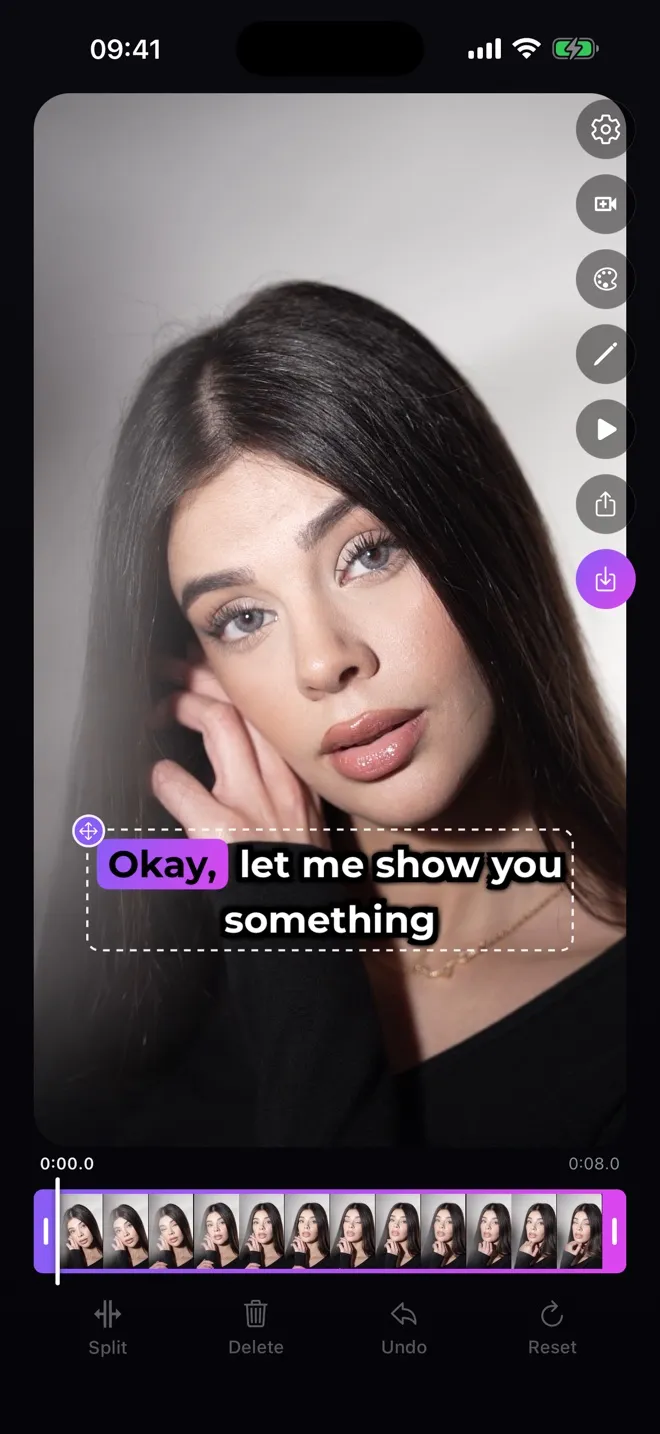
-
Save and post
Save the video to Photos. In Instagram, open the story camera, swipe up to your recent videos and pick it. The subtitles are part of the picture, so there is nothing more to add.
Sticker or burned-in: which to use
Use the sticker when it’s available, you speak English and plain text is enough.
Burn the subtitles in when the sticker isn’t offered in your country, when you speak another language, when you want word-by-word styles, or when the same video goes to TikTok or Reels too. Burned-in text travels with the file, so it looks the same wherever you post it — and nobody can switch it off.
Why can’t I see captions on my Instagram story?
Instagram doesn’t caption stories by itself. Its help pages describe automatic closed captions — the kind viewers can switch on — for reels only. A story shows text only if the person who posted it added the Captions sticker or burned subtitles into the video.
So if a story has no captions, the creator didn’t add any. If you’re the creator and the sticker is missing from your tray, see the limits above.
Sources
What happened to Instagram story captions?
Nothing official: as of October 2026 the Captions sticker is still in Instagram’s list of story stickers. When people can’t find it, the reason is usually that it isn’t offered in their country or on their account, not that it was removed. Instagram’s separate Edits app can also generate captions, letting you pick the spoken language before it transcribes.
Sources
Longer videos
A story video up to 60 seconds plays as one clip. Instagram splits a longer video into several clips, and you can trim them with the video trimmer, which Instagram says is available on iOS. Burned-in subtitles simply continue into the next clip, because they are part of the video.
Sources