How to add captions to Instagram Reels
Reels can have captions three ways: Instagram’s automatic closed captions, the Captions sticker, or captions burned into the video before you post. Here’s how each works and why captions sometimes don’t show up.
Download on the App StoreWhat burned-in captions look like
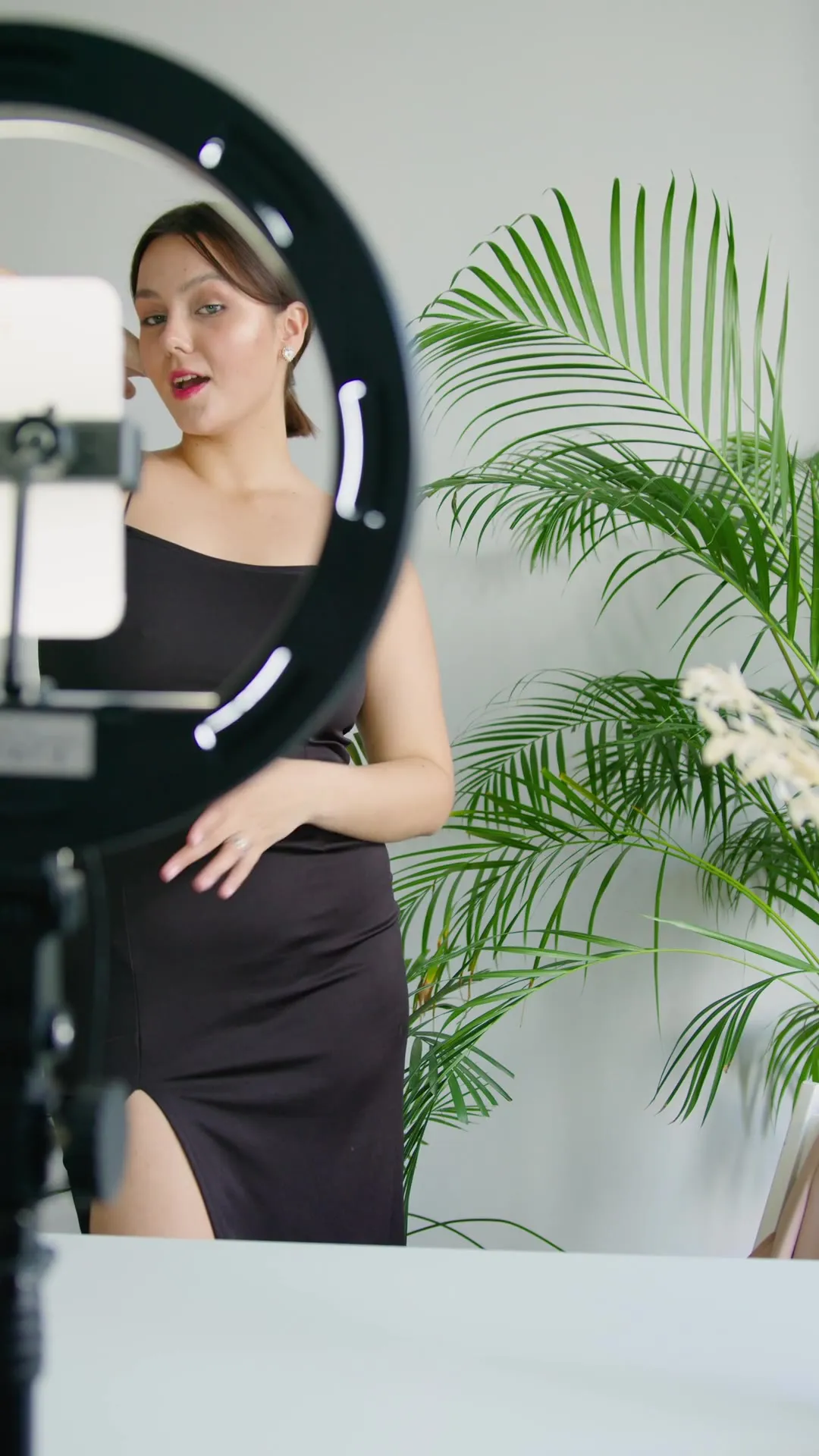
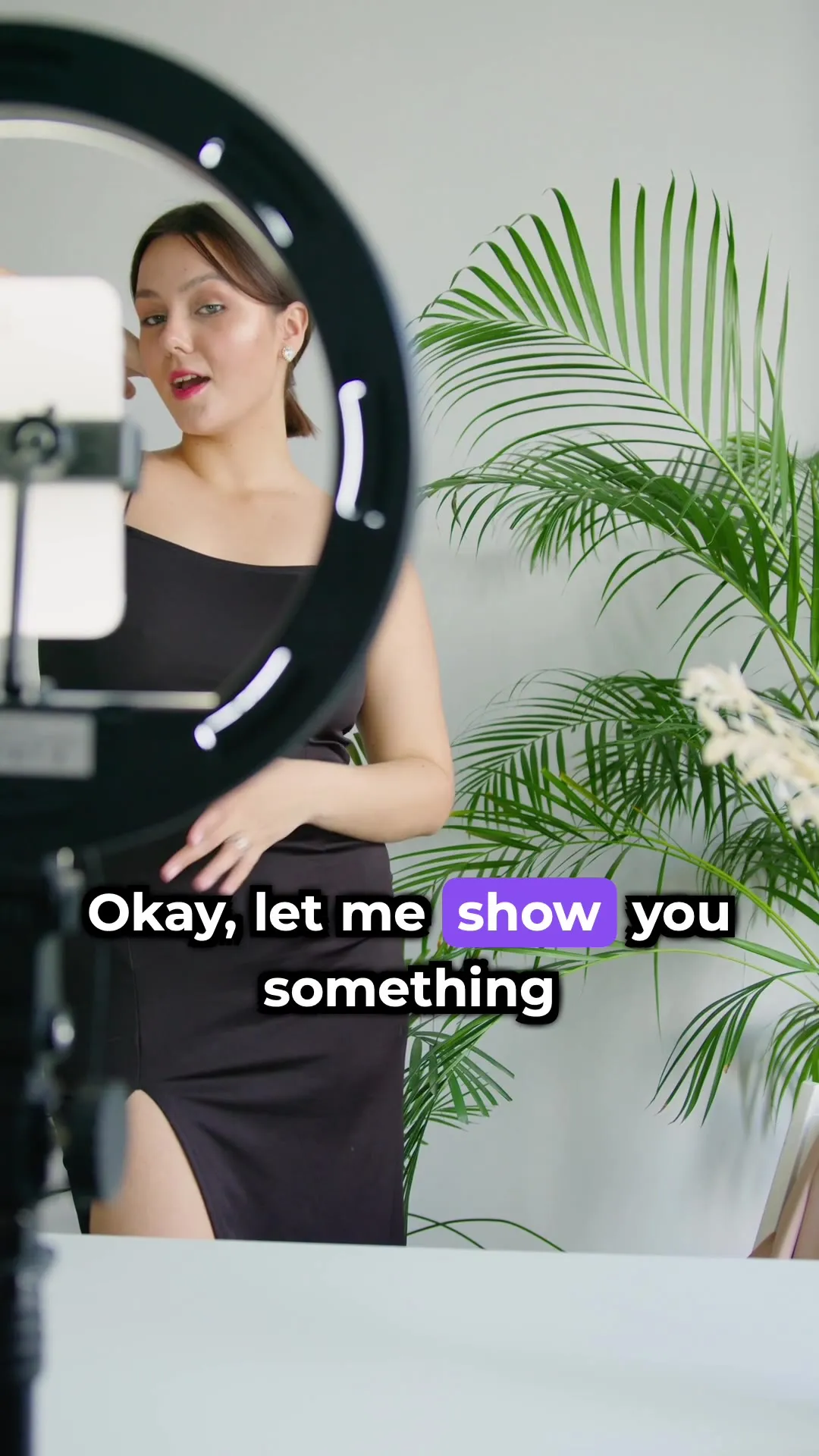
Both frames come from the same clip. The right one is the exported file, rendered by the app — not a mock-up.
Do reels have captions?
Yes. Instagram creates closed captions for reels automatically with speech recognition and shows them as text at the bottom. They’re a layer viewers can hide, not part of the video.
Instagram launched automatic captions in 2022 in 17 languages — English, Spanish, Portuguese, French, Arabic, Vietnamese, Italian, German, Turkish, Russian, Thai, Tagalog, Urdu, Malay, Hindi, Indonesian and Japanese. It doesn’t publish a current list.
Sources
How do I turn on captions on reels?
As the creator: when posting, go to Next → More options and switch Enable closed captions on or off; Translate closed captions controls translations. For a reel you’ve already posted: open it, tap Options → Edit → More options.
As a viewer: on a reel, tap Options → Closed captions and choose Always show or Never show. The same setting is under Accessibility and translations → Captions and translations in your profile menu.
Sources
How can I add automatic captions to my reels?
Besides closed captions, there’s the Captions sticker: after picking your video, tap Stickers → Captions. It transcribes the audio and puts it on the reel as text you can recolour, change the font of, and correct word by word. Instagram says stickers may be unavailable in Japan and in European countries.
Sources
Why are my captions not showing up on Instagram reels?
The usual reasons, from Instagram’s own pages: the viewer chose Never show closed captions; the creator switched captions off for that reel; the language isn’t one Instagram captions; or the feature isn’t available on that account — Instagram says captions may not be available to everyone. If the Captions sticker is missing from your tray, it may not be offered in your country.
Sources
Burn captions into a reel on iPhone
-
Pick the video
Open Subtitled and choose the clip from your camera roll.
-
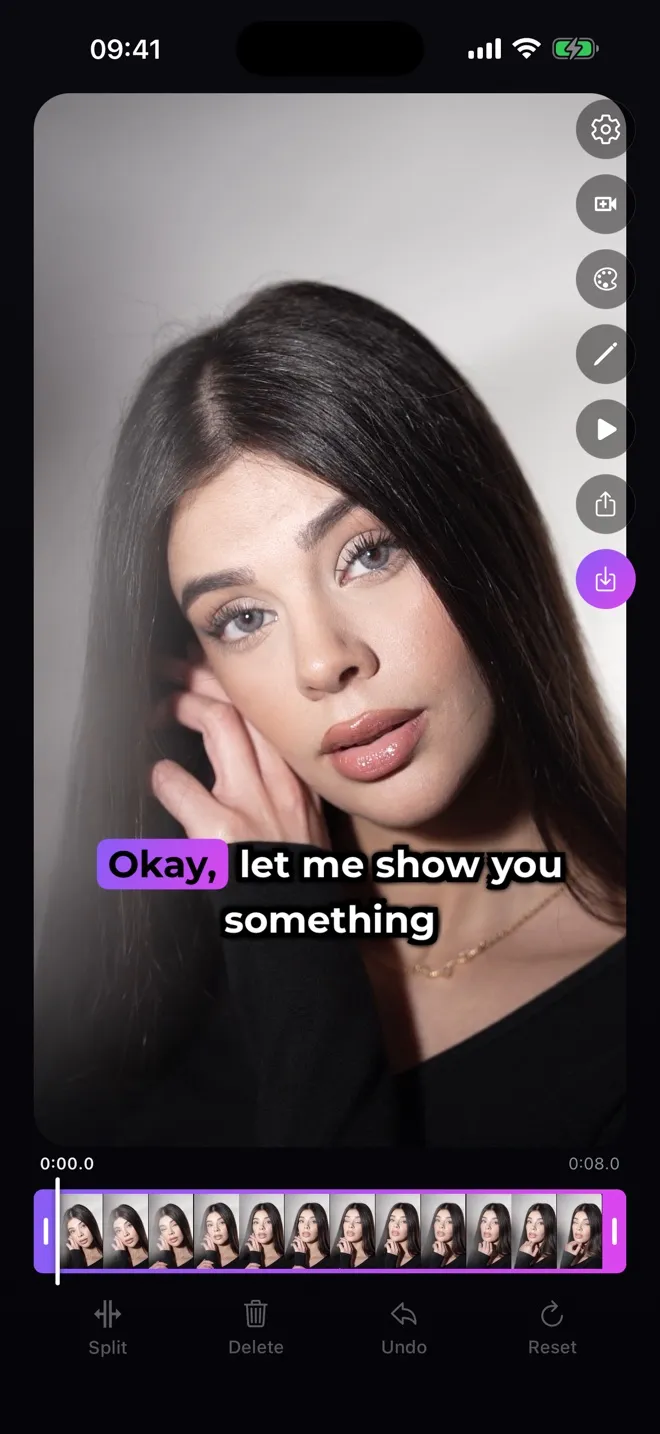
Generate the captions
The app transcribes the speech and times every word. Edit any line if a word came out wrong.
-
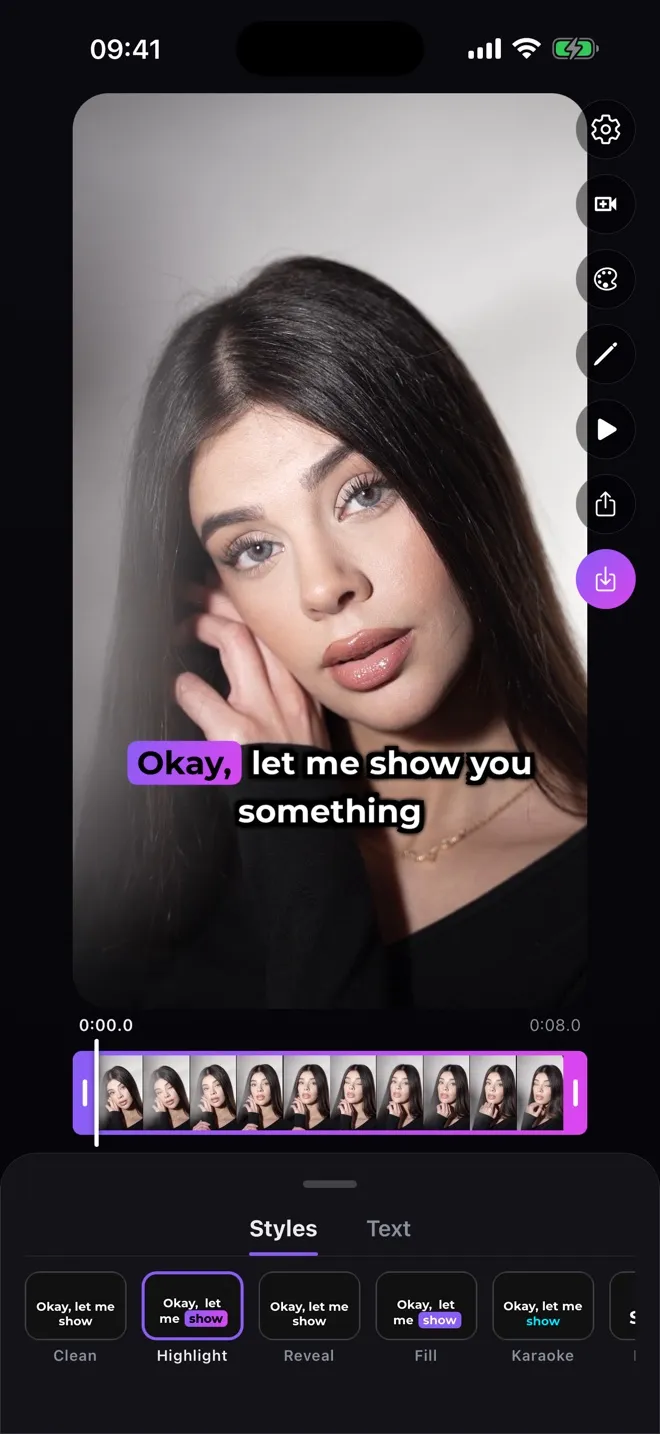
Choose a style
Fill, Highlight and Karaoke follow the voice word by word; Clean is plain text.
-
Post without doubling
Save the video, then post it as a reel. Since the captions are already in the picture, consider switching off Enable closed captions under More options so viewers don’t see the text twice.
Reel length and format
Reels can be up to 20 minutes, but Instagram says reels over 3 minutes won’t be recommended to new audiences. You can upload an aspect ratio between 1.91:1 and 9:16, at least 720 pixels and 30 FPS.
Sources