How to burn subtitles into a video
Burning in subtitles means drawing the text into the picture itself, so it becomes part of every frame. Here’s what that changes compared with a subtitle file, when it’s the right choice, and how to do it on an iPhone.
Download on the App StoreBefore and after burning in


Both frames come from the same clip. The right one is the exported file, rendered by the app — not a mock-up.
What does “burned-in subtitles” mean?
Burned-in subtitles — also called hardcoded or open captions — are drawn into the video image. They’re always on screen and no one can turn them off. Soft subtitles and closed captions are the opposite: a separate text track or file that the player shows only when the viewer switches it on.
Sources
Burned-in vs soft subtitles
Turning off: only soft subtitles and closed captions can be hidden.
Editing: to change burned-in text you export the video again; a subtitle file can be edited on its own.
Languages: burned-in subtitles need one copy of the video per language; one video can carry several soft subtitle tracks.
Accessibility: screen readers can’t read text that’s part of the image, and viewers can’t resize or restyle it. Closed captions let the viewer’s device set the font, size and colour.
Sources
When to burn subtitles in
When the platform won’t take a subtitle file. Instagram, for example, has no way to upload a ready-made caption file — only its own auto-generated captions. Accessibility experts note that where caption files aren’t supported, burned-in captions are better than none.
When you want the subtitles to look exactly the same everywhere the video is posted, styled the way you chose.
When most people watch without sound — burned-in text is there from the first frame, with nothing to switch on.
Sources
Burn subtitles into a video on iPhone
-
Pick the video
Open Subtitled and choose the clip from your camera roll.
-
Generate and check the subtitles
The app transcribes the speech and times every word. Fix any line before you export — after burning in, the text can’t be edited in the file.
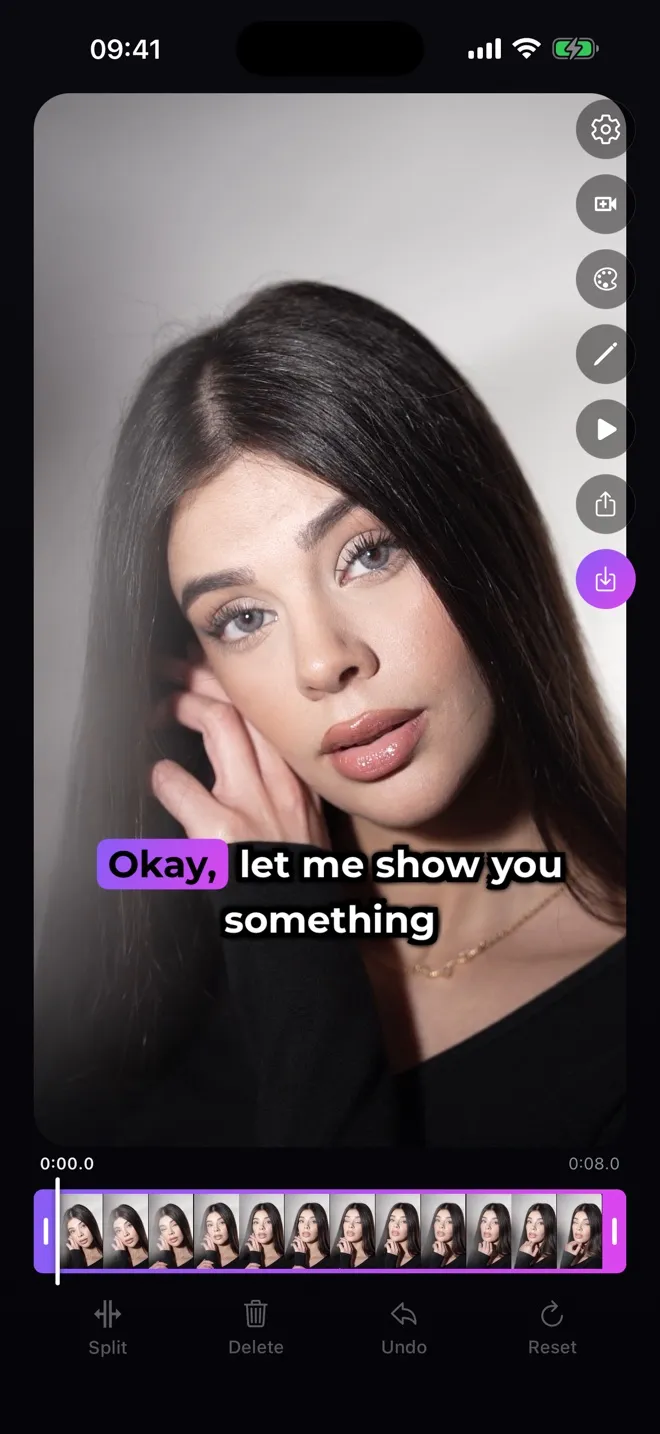
-
Choose a style and position
Pick one of seven styles and drag the text where it reads best.
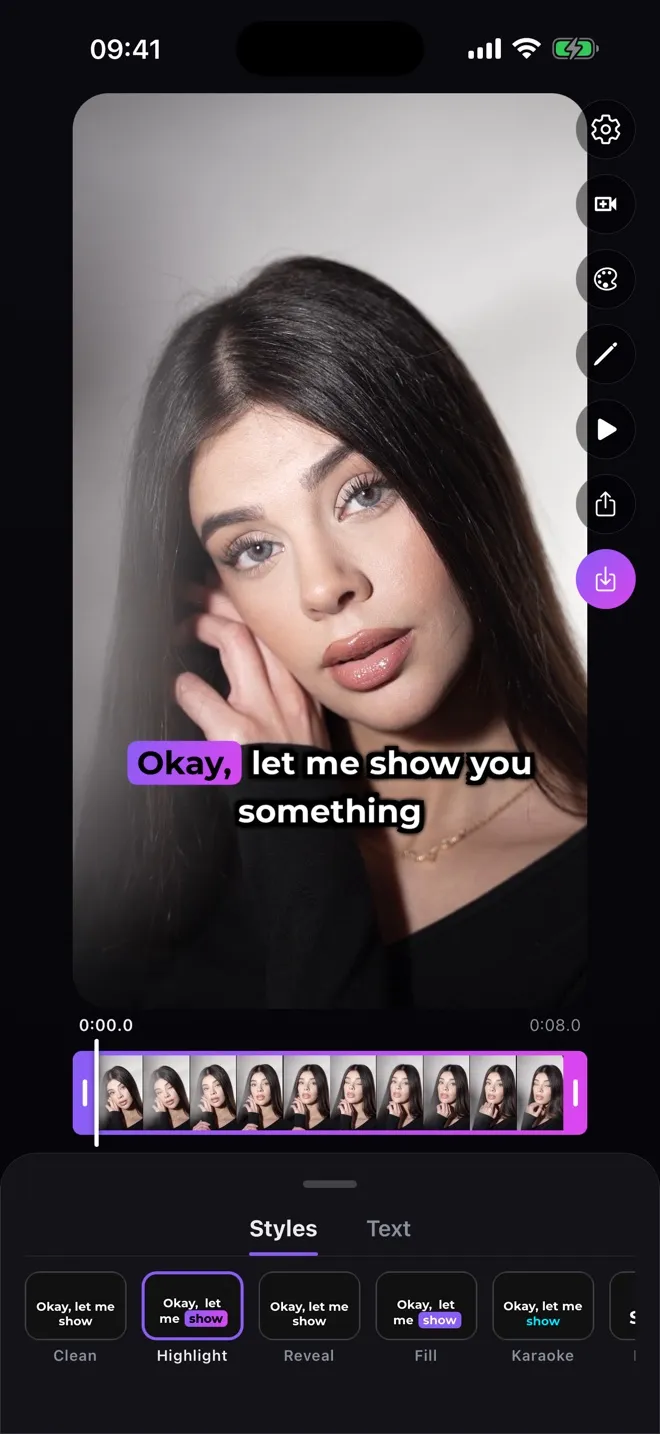
-
Save
Save the video to Photos. The subtitles are now part of every frame, and the file plays with them in any app.
How do I remove burned-in subtitles?
You can’t switch them off the way you can with a subtitle track, because they’re part of the picture. The practical fix is to keep your original video and export it again with corrected subtitles — which is why it’s worth checking every line before burning in.
Does burning in reduce quality?
Burning in means the video is encoded again, because the text is drawn onto the decoded frames. FFmpeg’s documentation explains that copying a stream without re-encoding is fast and lossless, but filters such as drawing subtitles can’t be used that way. So burning in takes extra time, and with lossy formats it can cost a little quality. Soft subtitles can be added as a separate track without touching the picture.
Sources
Subtitle file formats in one line each
SRT (SubRip): a plain-text file of numbered lines with start and end times — the most widely accepted format.
WebVTT (.vtt): the W3C web format used with the HTML <track> element, with optional positioning and styling.
Sources