How to add captions to YouTube Shorts
YouTube gives you three built-in ways to caption a Short, and you can also burn captions into the video before uploading. They behave differently: some viewers can switch off, some they can’t, and only one gives your Short the CC label in search.
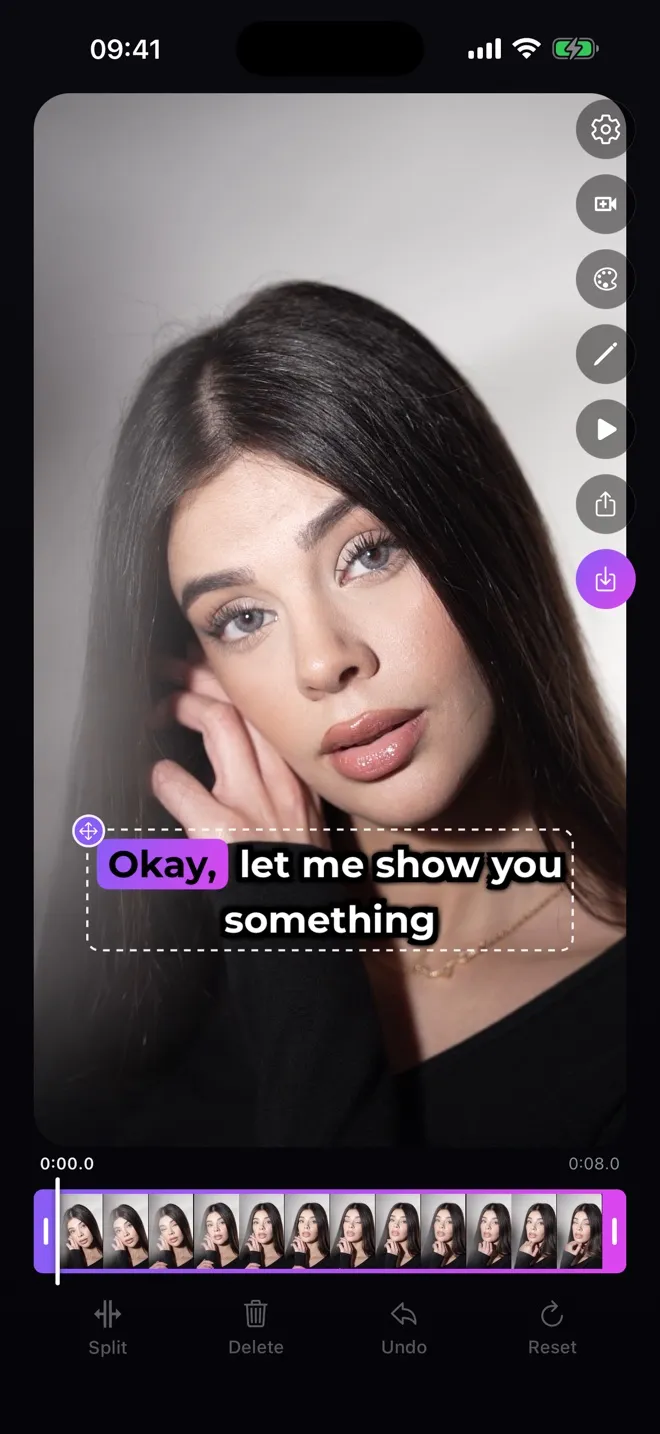
Download on the App StoreWhat burned-in captions look like
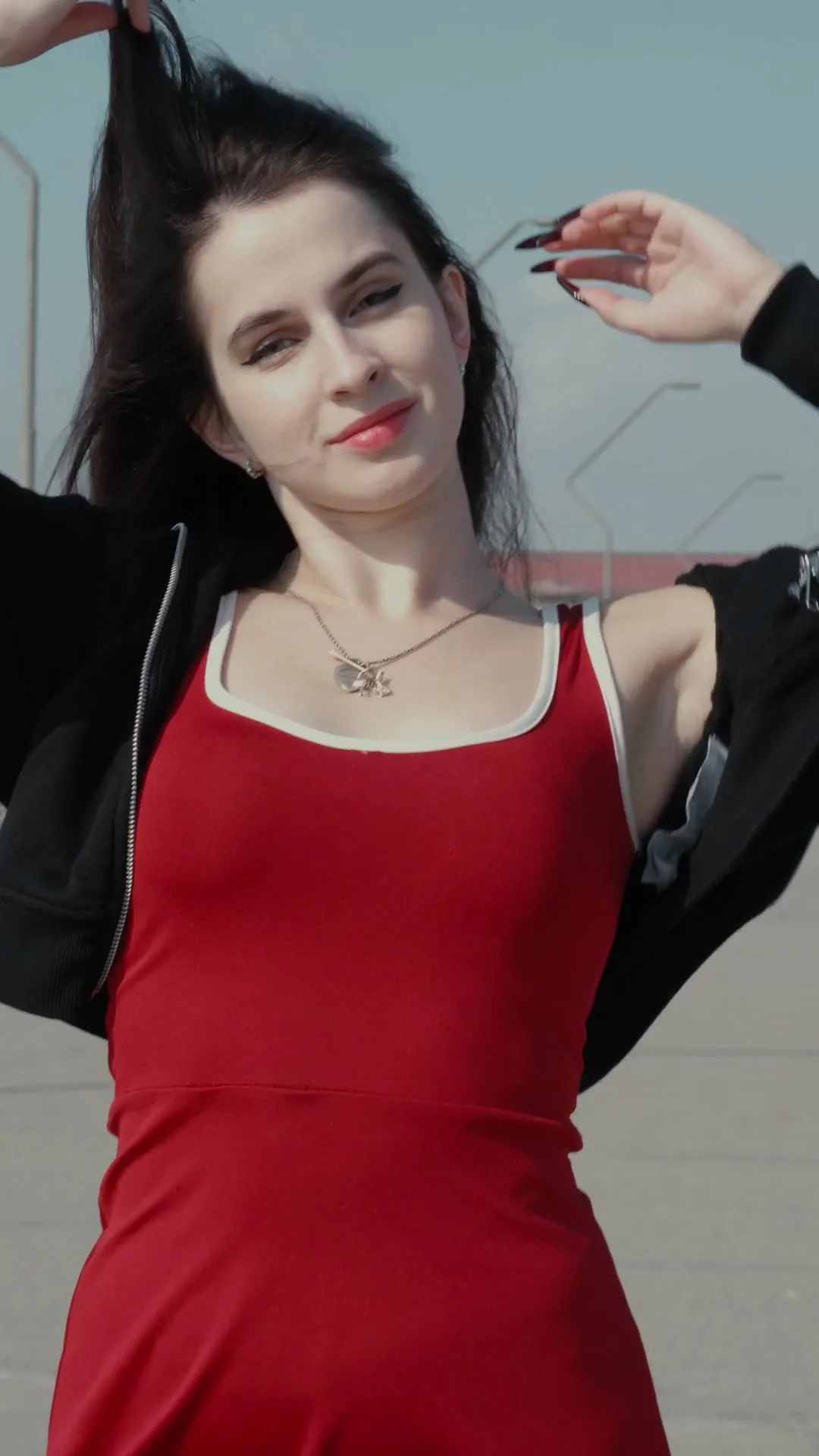
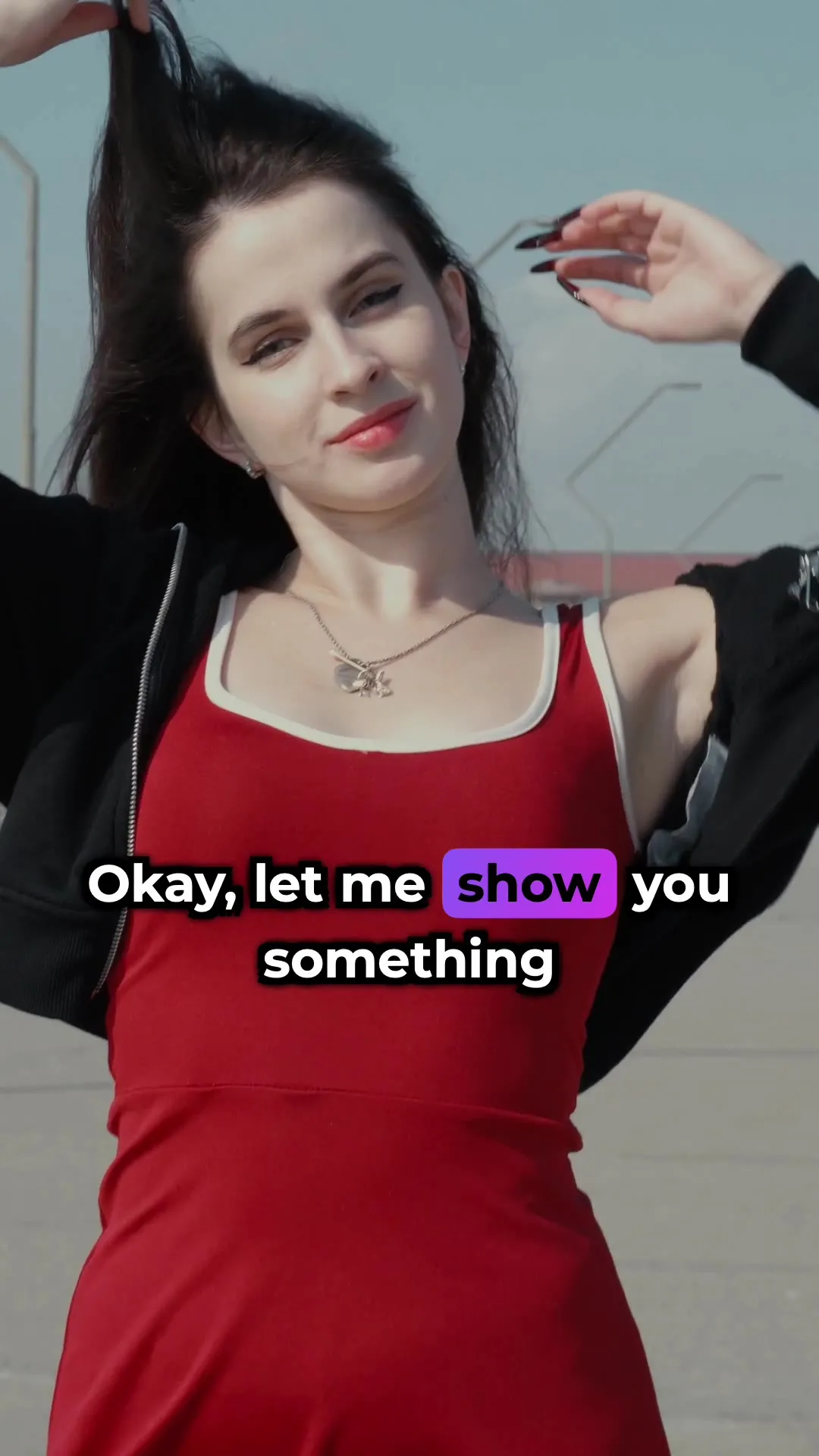
Both frames come from the same clip. The right one is the exported file, rendered by the app — not a mock-up.
The three ways YouTube lets you caption a Short
1. Automatic captions. YouTube generates a caption track for Shorts as well as long videos. Viewers turn it on or off themselves. YouTube says auto captions may not be ready right after upload — how long it takes depends on the audio.
2. A caption track in YouTube Studio. In the Subtitles section you can upload a caption file, type captions, or duplicate the automatic track and correct it.
3. The Captions tool in the Shorts editor. In the YouTube app it adds automatic captions to the video that you can correct and restyle (font, text colour). YouTube says it is “only available in certain languages and mobile devices” and doesn’t list which.
Sources
Burned-in captions vs a caption track
Captions burned into the video before upload are part of the picture. Every viewer sees them, nobody can turn them off, and they stay when the same file goes to TikTok or Instagram. You choose exactly how they look, including word-by-word highlighting.
A caption track is different: viewers can hide it, and it’s what gives a video the “CC” label in YouTube search and lets it show up under the Subtitles/CC search filter. Burned-in text doesn’t do that, because to YouTube it’s just pixels. You can use both — burned-in captions for the look, plus a caption track for the CC label.
Sources
Burn captions into a Short on iPhone
-
Pick the video
Open Subtitled and choose the vertical clip from your camera roll.
-
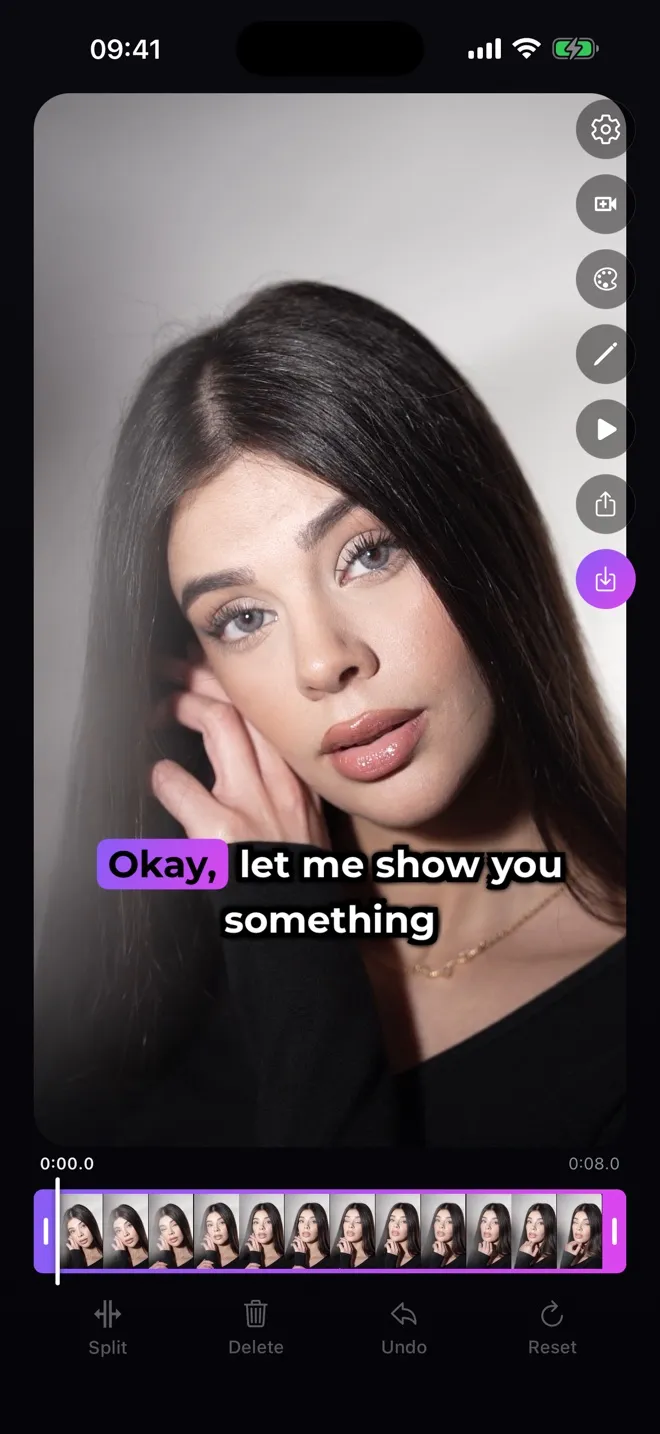
Generate the captions
The app transcribes the speech and times every word. Edit any line if a word came out wrong.
-
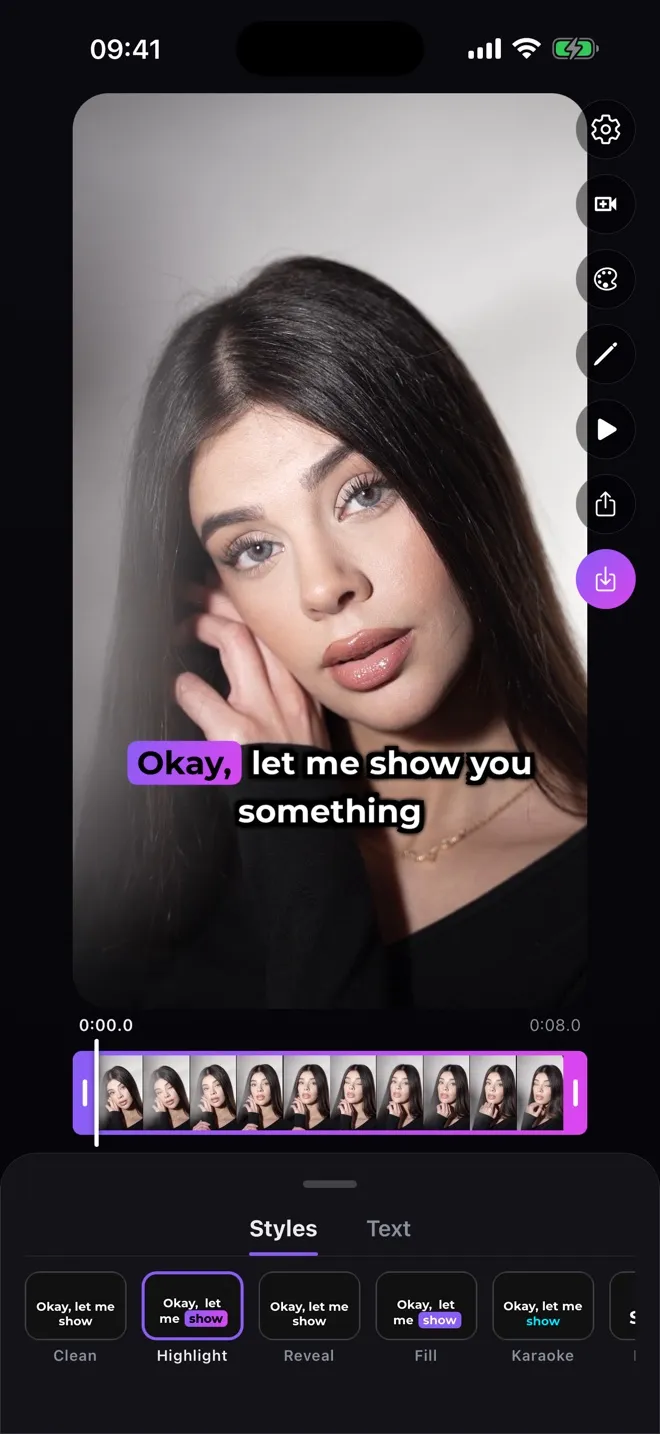
Choose a style
Seven styles, including Highlight and Karaoke, which follow the voice word by word.
-
Place the text and save
Drag the caption to where it reads best, then save the video to Photos and upload it as a Short in the YouTube app.
Can you turn on captions on YouTube Shorts?
Yes, if the Short has a caption track — YouTube’s automatic captions cover Shorts. In the YouTube app you can show or hide captions, and make them the default under Settings → Captions. YouTube doesn’t document a separate caption control inside the Shorts player.
If captions are part of the video itself, there is nothing to turn on or off: they’re always there.
Sources
Why do my YouTube Shorts have captions?
Either YouTube generated a caption track and your app is set to show captions by default (YouTube app Settings → Captions, or your phone’s accessibility settings), or the creator burned captions into the video. The first can be switched off; the second can’t.
Sources
Languages and limits
YouTube’s automatic captions support a long list of languages, Danish included. The Captions tool in the Shorts editor works only in “certain languages”, which YouTube doesn’t name.
Since 15 October 2024, a square or vertical video up to 3 minutes long is treated as a Short.
Sources