How to add captions to TikTok videos
TikTok has two kinds of captions of its own — automatic ones and the ones you add in the editor — and you can also burn captions into the video before uploading. Here’s how each works and what your viewers actually see.
Download on the App StoreWhat burned-in captions look like
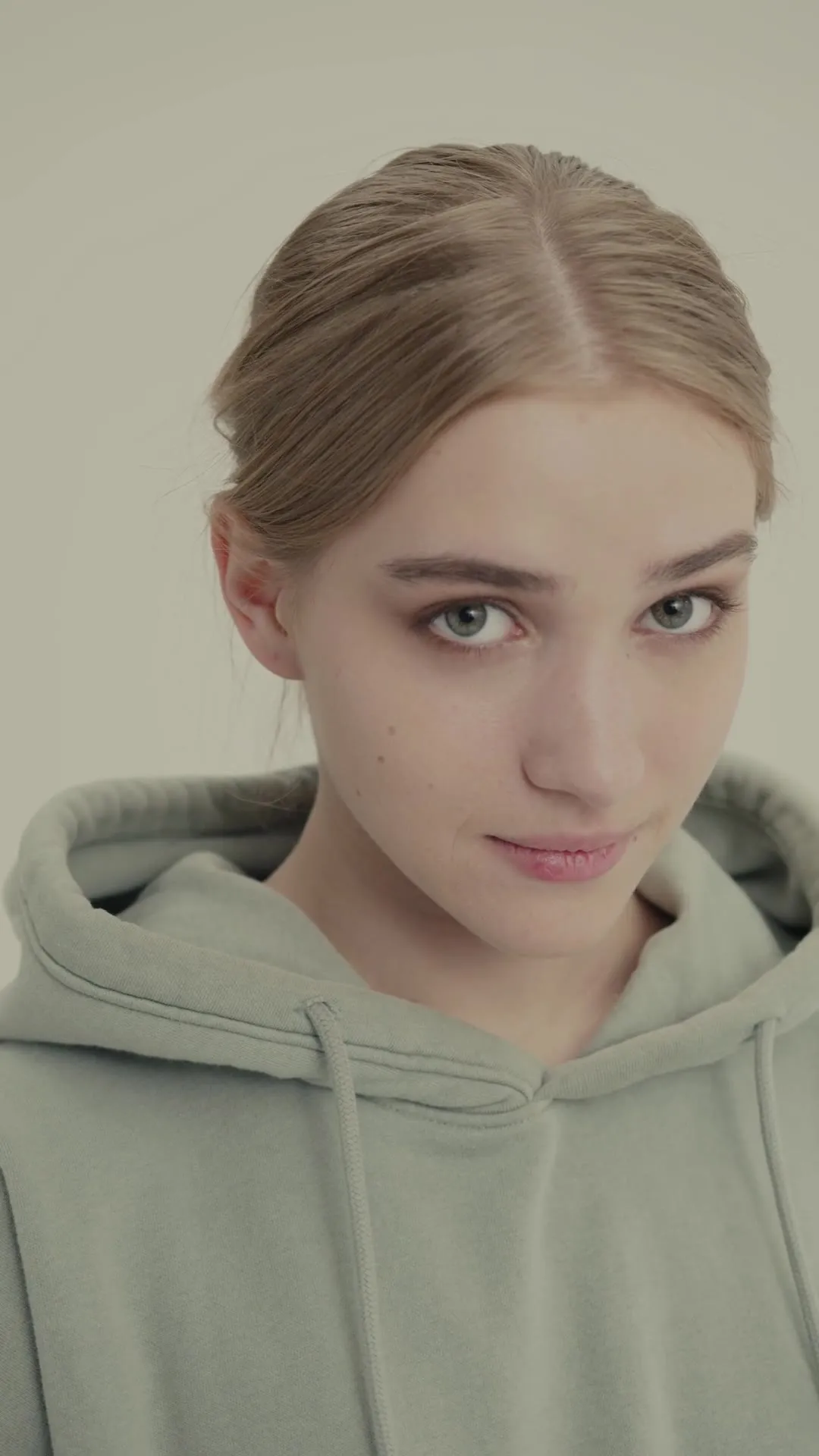
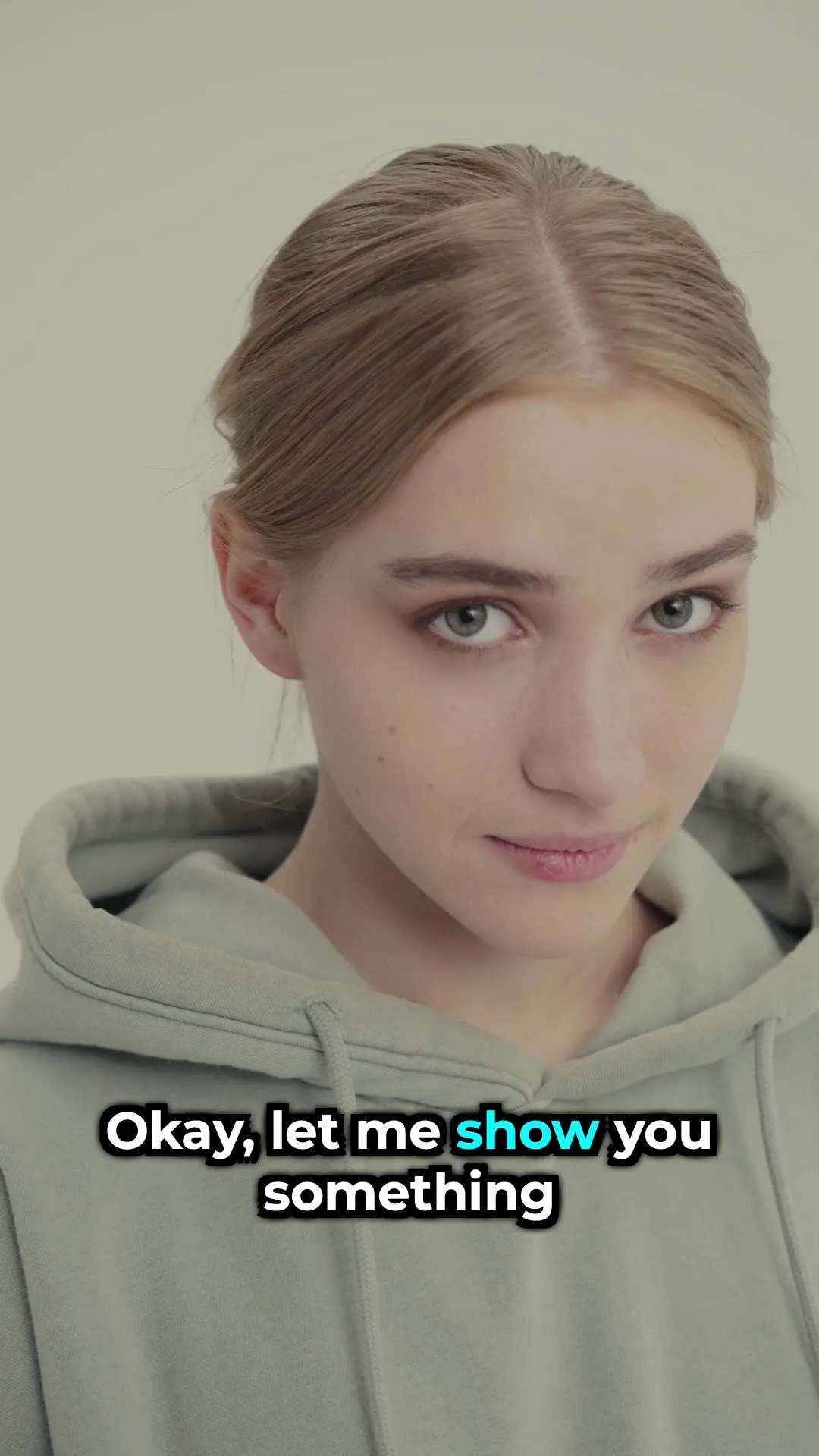
Both frames come from the same clip. The right one is the exported file, rendered by the app — not a mock-up.
How do you generate captions on TikTok?
Automatic captions: TikTok creates them for videos you upload. Before posting, tap More options → Select video language so they’re made in the right language.
Creator captions: in the editor, after recording or uploading, tap Captions on the side panel. TikTok transcribes the speech, you check and edit each line, then tap Save. TikTok says these can also be designed — for example, a different font style or colour.
To fix captions on a video you’ve already posted, tap the caption, then Edit captions.
Sources
How do viewers turn captions on or off?
On a post that has captions, viewers tap Share → Captions and switch Show captions on or off. So TikTok’s automatic captions are something viewers can hide. Captions burned into the video can’t be hidden — they’re part of the picture.
Sources
Why can’t TikTok generate my captions?
TikTok only says that “eligible videos” get automatic captions based on the language you select, and that captions and translations are available on select videos. The one cause it points to is the language: if the video language is wrong, or not one TikTok supports, you won’t get captions.
TikTok doesn’t publish a current list of caption languages. The last official list (July 2022) was English, Portuguese, German, Indonesian, Italian, Korean, Mandarin, Spanish and Turkish. If your language isn’t covered, burned-in captions made elsewhere don’t depend on it.
Sources
TikTok captions or burned-in captions?
TikTok’s own captions are free and built in — a good choice when your language is supported and plain styling is enough.
Burn captions in when you want them always visible, with word-by-word styles that follow the voice, or in a language TikTok doesn’t caption. Burned-in text is part of the file, so the same video looks the same when you post it to Reels or Shorts too.
Burn captions into a TikTok video on iPhone
-
Pick the video
Open Subtitled and choose the clip from your camera roll.
-
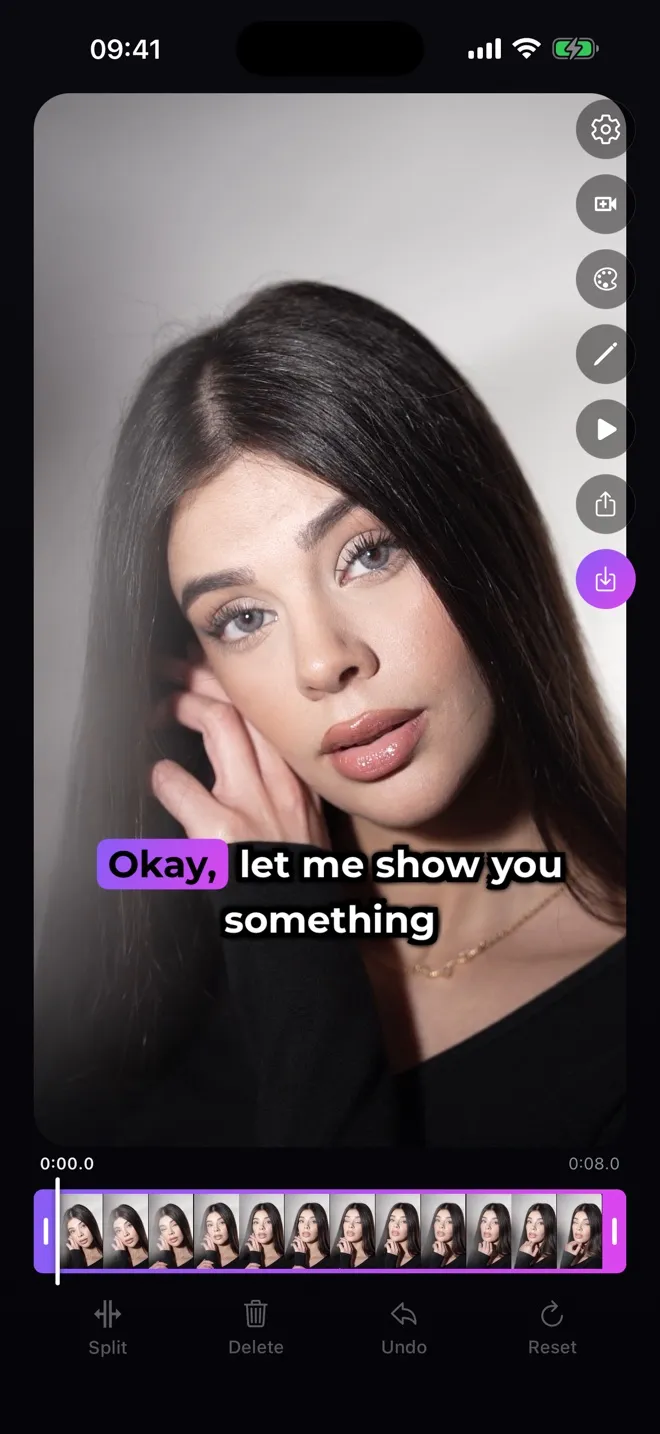
Generate the captions
The app transcribes the speech and times every word. Edit any line if a word came out wrong.
-
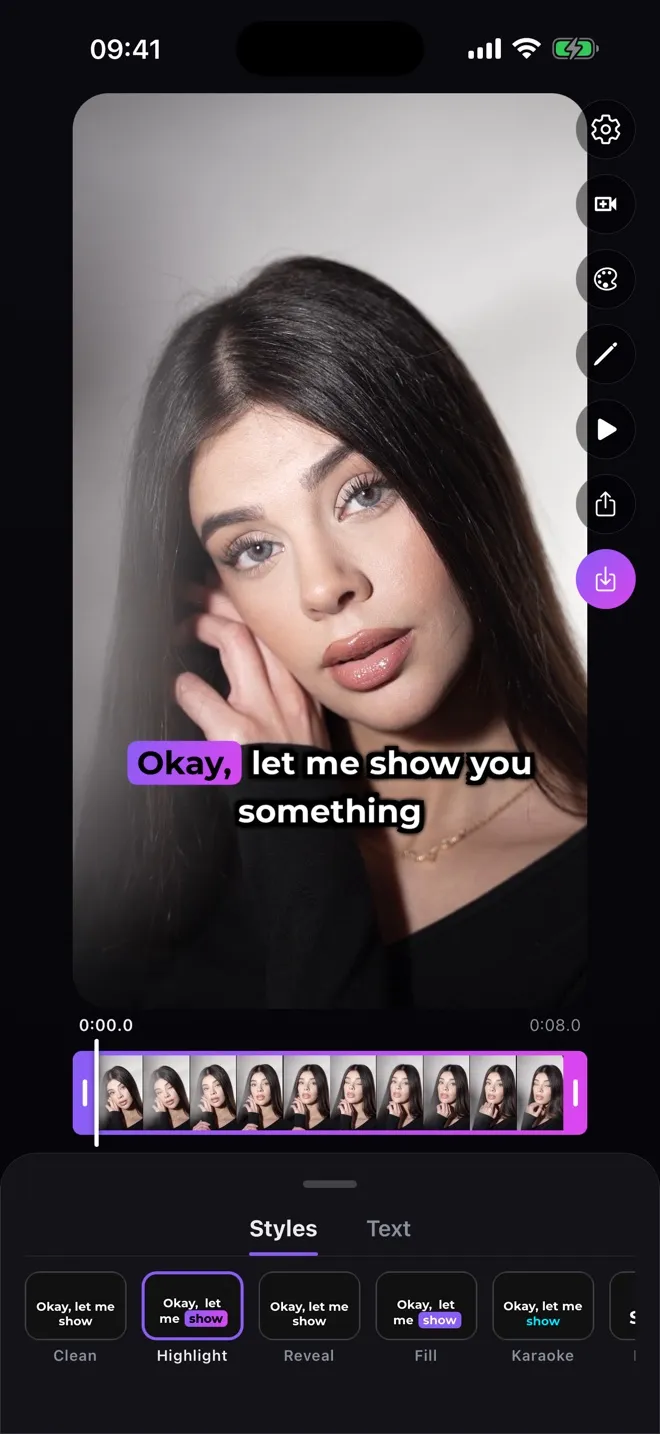
Choose a style
Karaoke and Highlight follow the voice word by word; Clean is plain text.
-
Save and upload
Save the video to Photos and upload it in TikTok. If TikTok also adds automatic captions, you can remove them with Edit captions so the text isn’t doubled.
Length limits
TikTok lets you record videos up to 10 minutes in the app and upload videos up to 60 minutes. If you pick a sound first, the sound’s length sets the video’s length.
Sources