How to translate a video into English subtitles
To get English subtitles for a video in another language you need two steps: write down what is said in the original language, then translate that text and keep its timing. Here’s why it works that way, what Google and YouTube can and can’t do, and how to do it on an iPhone.
Download on the App StoreSame video, original and translated

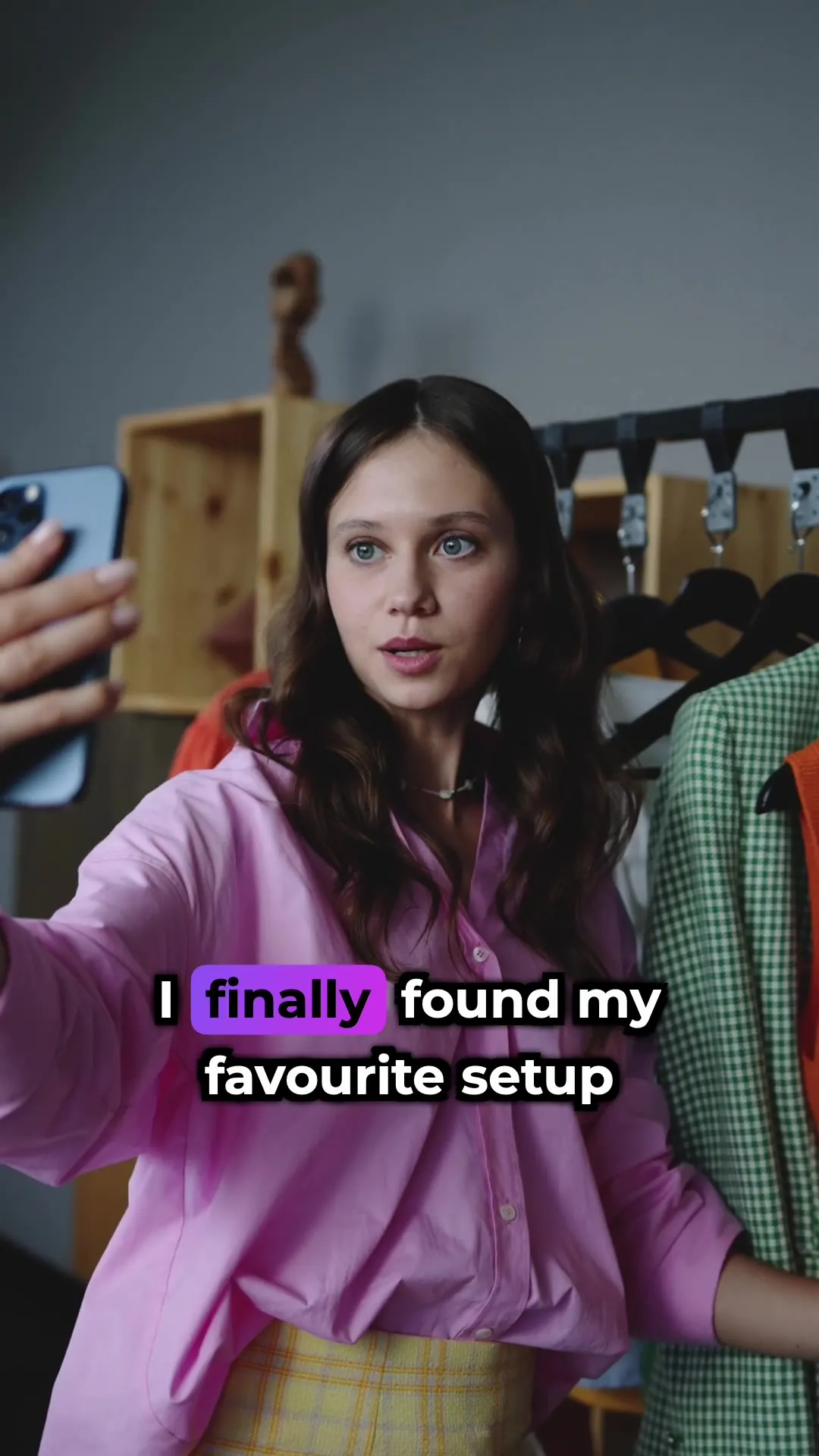
Both frames are exports from the app: the same clip, subtitled in Danish and after translating the subtitles to English.
Can I Google Translate a video?
Not as a file. Google Translate’s document upload accepts .docx, .pdf, .pptx and .xlsx — no video or audio formats. The Translate app works on speech as it happens (Conversation, Transcribe), not on a saved video.
For a video that’s already on YouTube, the Google option is YouTube’s Auto-translate: turn on captions, open the caption settings and choose Auto-translate. It only works when the video already has a caption track, because it machine-translates that track.
Sources
Can AI translate a video?
Yes, in one of two ways. Translated subtitles keep the original voice and show the speech as text in another language — as a track viewers switch on, or burned into the picture. AI dubbing replaces or adds an audio track where a synthetic voice speaks the translation; YouTube calls this automatic dubbing.
Subtitles keep the speaker’s own voice and tone; dubbing lets people listen instead of read. This guide is about subtitles.
Sources
Why transcribe first, then translate
Subtitle translation is a chain: speech recognition turns the audio into text in the original language, then machine translation turns that text into English, keeping each line’s timing. Researchers call the main weakness of this chain error propagation — a wrong word in the transcript becomes a wrong word in the translation.
So the most useful thing you can do is check the original-language subtitles before you translate. Fixing a name or a misheard word there fixes it in every language you translate to.
Sources
Translate a video into English subtitles on iPhone
-
Pick the video
Open Subtitled, choose the clip from your camera roll and generate subtitles in the language that’s spoken.
-
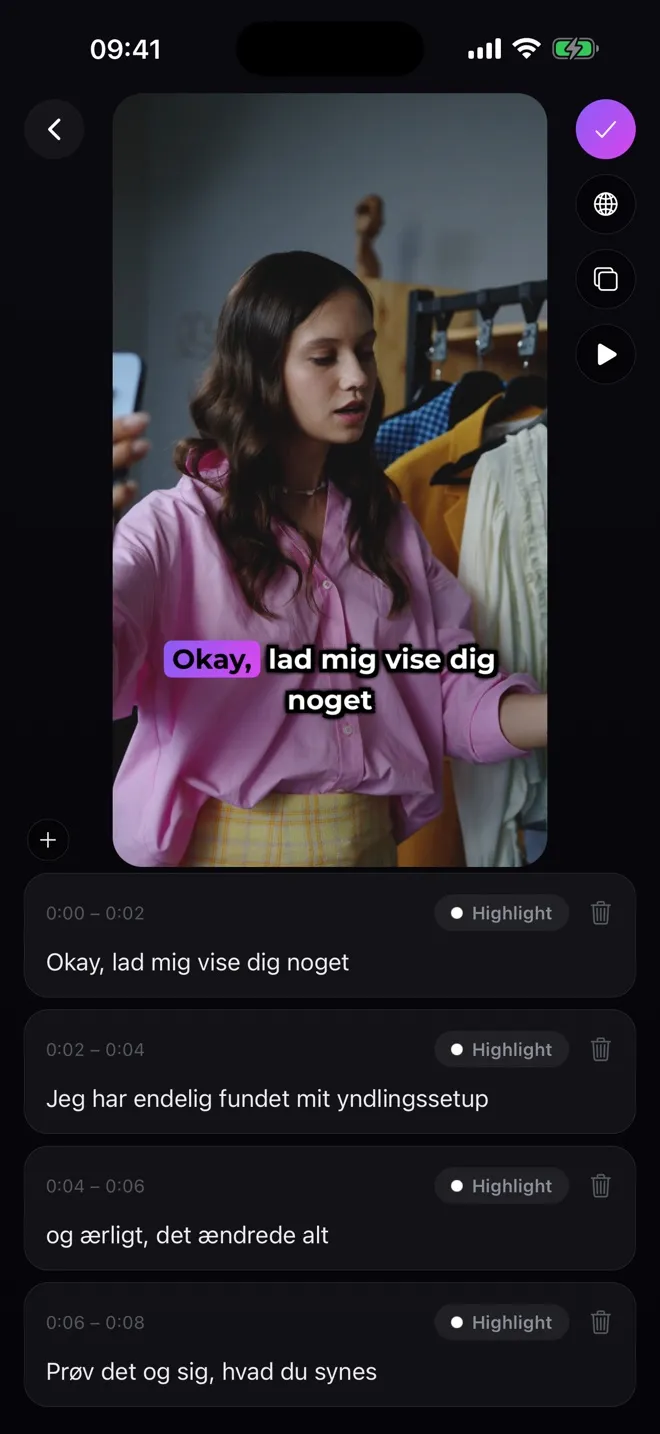
Check the original subtitles
Open the editor and read through the lines in the original language. Correct anything misheard — it carries into the translation.
-
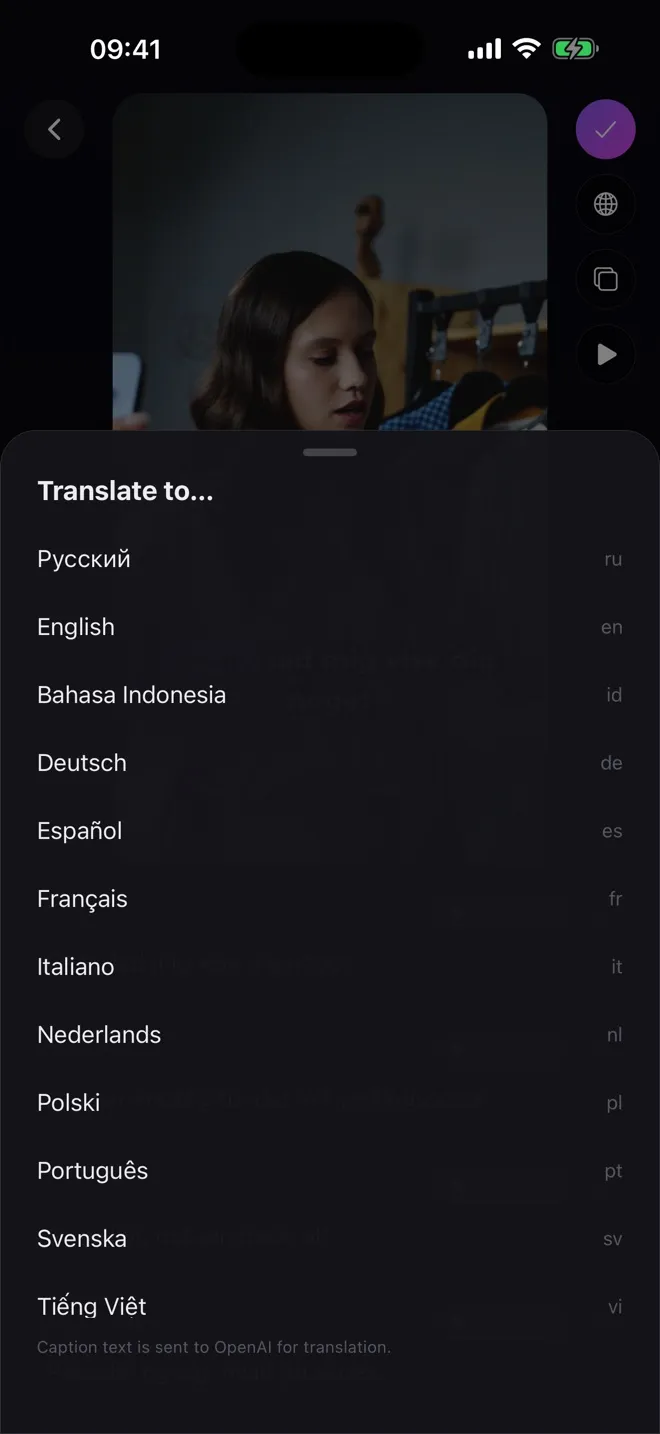
Translate to English
Tap the globe and choose English. The app lists 20 target languages. The subtitle text is sent to OpenAI to be translated.
-
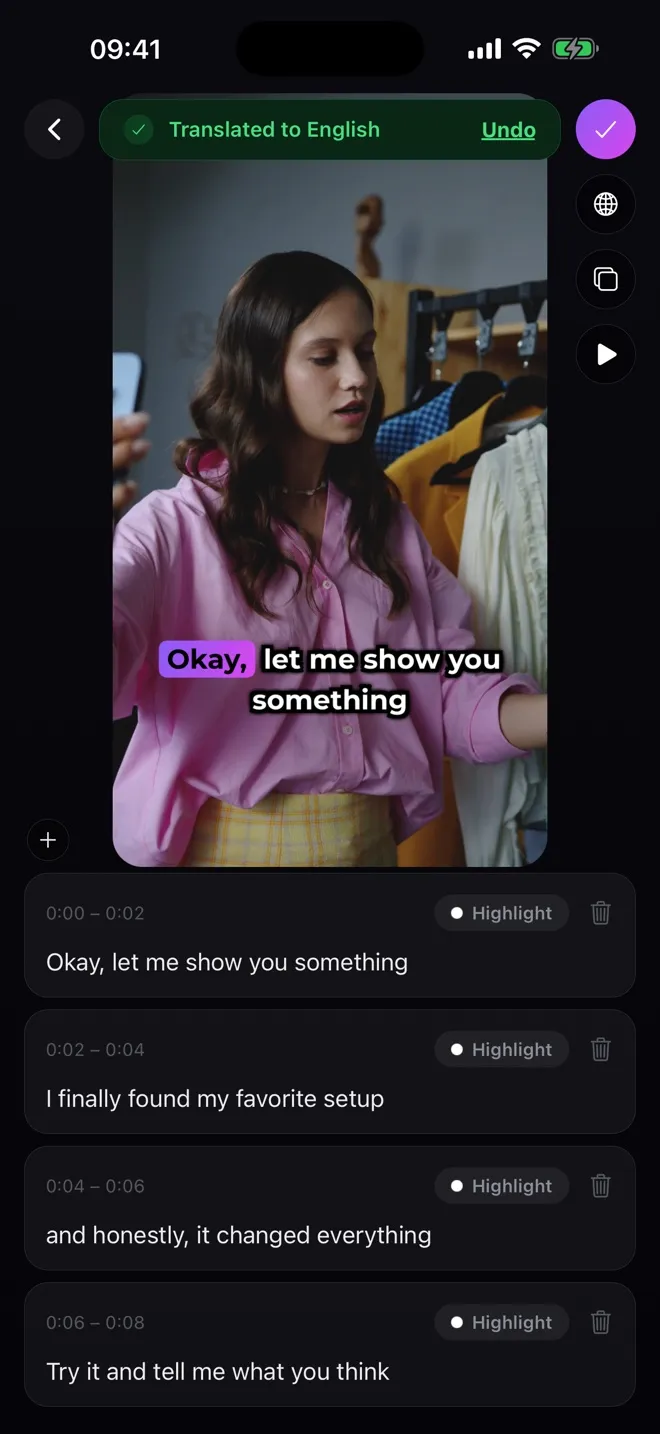
Review and export
The lines are replaced with English, keeping their timing; you can undo if needed. Pick a style and save the video — the English subtitles are burned in.
Can I translate a video in real time?
On some phones. Android’s Live Caption captions any media playing on the device, and on Pixel 6 or newer it can translate those captions. iPhone’s Live Captions transcribe audio in any app in real time in several languages, but Apple doesn’t document translating any video as it plays.
Real-time captions help you understand a video yourself; they aren’t saved into the file. To share a video with English subtitles, they have to be in the video.
Sources